Thursday, 9 May 2013

Reading Excel file using ruby


 This is an example to read excel file in ruby (this can be used for reading excel workbook as well) using RubyXL gem

Step 1) Create an excel workbook like below
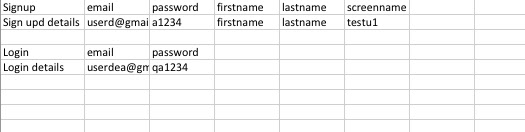


 Step 2) Create a ruby file including gems
require 'rubygems'
require 'rubyXL'

Copy path to excel file and replace it in place of work book
    workbook = RubyXL::Parser.parse("/Users/username/Downloads/simple_spreadsheet.xlsm")


This first sheet of excel workbook can be read into hash table using below command
    hash_arr=workbook[0].get_table(["Login", "email", "password"])

Multiple tables can be present in same file and they will read based on the format given in the above command (this helps in organizing many data tables in single sheet of excel file)


 Step 3: If needed it can be used in cucumber file as below


Source code :


require 'rubygems'
require 'rubyXL'
workbook = RubyXL::Parser.parse("simple_spreadsheet.xlsm")
hash_arr=workbook[0].get_table(["Login", "email", "password"])
all_tables=hash_arr[:table]
puts all_tables


For more details refer to - https://github.com/gilt/rubyXL project

Output looks like below


calabash-ios: reusing step definitions using macros

This post is intended to explain how to reuse step definitions in calabash

Lets see with an example with a feature file

  Scenario Outline: I am able to test macro
    Given I want to test macro
    Then I have macro "hello"
  Examples:
    | filename  |
    | hello     |


Step definitions file


Call the second step definition here 
Given(/^I want to test macro$/) do
  var="test string"
  macro 'I have macro "'+var+'"'
end


This step can be used as macro in other step definitions

Then(/^I have macro "(.*?)"$/) do |arg1|
  puts arg1
end


Calabash-IOS: Tips to search elements in View and webview

Calabash supports identification of view both using xpath & CSS

Its confirmed in in here https://groups.google.com/forum/#!msg/calabash-ios/nubfmY-6jbM/aSoYtW9mT8cJ

But this information is missing in wiki page

Usage :

Using CSS to identify elements : query("webView css:'#header'")
for xpath identification replace css by xpath and specify the path.

In Calabash-IOS there is no way to get source of HTML page, Getting elements from page

can be bit tricky, There are several possibilities to get past this 

check my video on this www.youtube.com/watch?v=w5rxvI3w2Ss

And also check below video


1) Use query("webView css:'*'") to get all associated elements on page then search for text you are looking at.
Index of results returned from query can be used to identify elements
Example:

res=query("webView css:'*'")
res[12] - could be the element you may want to verify

2) To verify if object is shown on screen .empty? can be very handy
 res=query("view text:'SomeText'").empty? # res is false if element is present
 use begin rescue block (in Ruby) to catch these exceptions and handle them


3) use regular expression 
query("view {text LIKE '*hello*'} ")

4) Using variables in search
text_to_check="hello"
query("view {text LIKE '*#{text_to_check}*'} ") 

5) Looping up and down until text found


while(true)
  begin 
    #check text found and click
  rescue
    #if there was any exception reported
    scroll("view",:down)
  end

end  

or 
wait_poll(:until_exists => "label text:'Cell 22'", :timeout => 20) do
  scroll("tableView", :down)
end
 
6)For converting case use upcase function
"hello".upcase

7) to check first & last result of array
arr=query("view {text LIKE '*#{text_to_check}*'} ")
arr.first 
arr.last  


Monday, 6 May 2013

Calabash-IOS helping tester to setup project - Not a guide for devs

This is a like a quick guide to help tester setup certificate and IOS project for calabash-ios

1) Create apple developer account
https://developer.apple.com/ then add your account to your company list for that you may need invitation from one of other team members who are already in that group

2) Go to https://developer.apple.com/devcenter/ios/index.action and log in with user name & pwd
  • Go to Certificates, Identifiers & Profiles
  • under Certificates, download certificate for ur name
  • Double click on and add it login key chain
3) Configuring IOS device
  • Connect device
  • Go to xcode -> window > organizer 
  • select device -> click on add portal
Now you device must be all set to be used for current project
Error & Solution:
to use dev certificate that was present on old machine on new machine export p12 certificate from previous machine and then use it here
This link will help in doing that - http://www.utexas.edu/its/help/user-certs/812

Setting folder name to show in mac terminal prompt

To set terminal prompt to show name of current folder use the below command

echo 'export PS1="\W \$: "' >> ~/.bash_profile 

PS1 can be configured to show the terminal prompt to show below options
  • \d – Current date
  • \t – Current time
  • \h – Host name
  • \# – Command number
  • \u – User name
  • \W – Current working directory (ie: Desktop/)
  • \w – Current working directory, full path (ie: /Users/Admin/Desktop)


Calabash-ios backdoor - A Magic way to set precondition in calabash - Be careful & choosy while using it

Lets looks at the Use of it

I had a test app for which i had to write tests but after each login, to logout I had to navigate 4-5 pages, This added extra overhead to my testing

Suppose i have 3 tests and second test fails without logging out I would never have starting point for my 3rd test and hence that would fail
I wanted a single start point from where I start my test each time. Thats when I decided to use calabash backdoor function.

Lets looks at changes first
  
1) Added below function delaration in app AppDelegate.m
This code will change for your application but the way of using it is similar.
In my case dev team member helped me with logout functionality

#pragma mark -
#pragma mark - Calabash Method
- (NSString *) calabashBackdoor:(NSString *)aIgnorable
{
    [[ONEApplication sharedInstance] logOut];
    AppDelegate* delegate = (AppDelegate*)[[UIApplication sharedApplication] delegate];
    [delegate showLoggedOutViewController];
   
    return aIgnorable;
}


2) Add declaration in AppDelegate.h
This can be kept as below or method name can be changed but method signature has to be maintained.
//Calabash Method
- (NSString *) calabashBackdoor:(NSString *)aIgnorable;

3) Now compile the Application
Time of verify changes are reflected or not


4) Deploy application , Launch calabash-ios console
run  'calabashBackdoor' command and this must be executed on the application

Simple steps to get ruby 1.9.3 for calabash on mac osx 10.7

I did face this problem of getting ruby 1.9.3 on mac osx 10.7
Then I realized I need rvm but before doing all this I did need xcode installed
this must be easy for mac experts not for me definitely

Here are simple steps for a mac beginner to get ruby 1.9.3

  • Download install xcode from appstore
  • Install command line tools from xcode - Go to xcode->preferences->downloads->components->commandline tools 
  • Install RVM
          \curl -#L https://get.rvm.io | bash -s stable --autolibs=3 --ruby
  • Install ruby using RVM - Install ruby 1.9.3 and use it
    rvm install 1.9.3
    rvm use 1.9.3
     

Errors & Solution

If there are error in RVM installation do this
Type following commands
~ $: source ~/.rvm/scripts/rvm
~ $: type rvm | head -n 1
rvm is a function
~ $: vi ~/.bash_profile add this line into bash_profile 
"source ~/.rvm/scripts/rvm"
Install ruby 1.9.3 and use it